How to fix: yt-dlp - 'HTTP Error 403: Forbidden' 2026 | Harmony
Generated guide based on video: Watch on YouTube
Summary: This guide teaches you how to resolve the HTTP Error 403: Forbidden issue in yt-dlp by configuring the environment variables and updating the config folder. Follow these steps to ensure your downloads work smoothly.
Materials Needed
- D-Now
- PowerShell
- Environment Variables
- Config Folder
Outcome: yt-dlp functions without HTTP Error 403
Steps
Step 1: Install D-Now
Copy the D-Now link for your operating system and paste it into PowerShell.
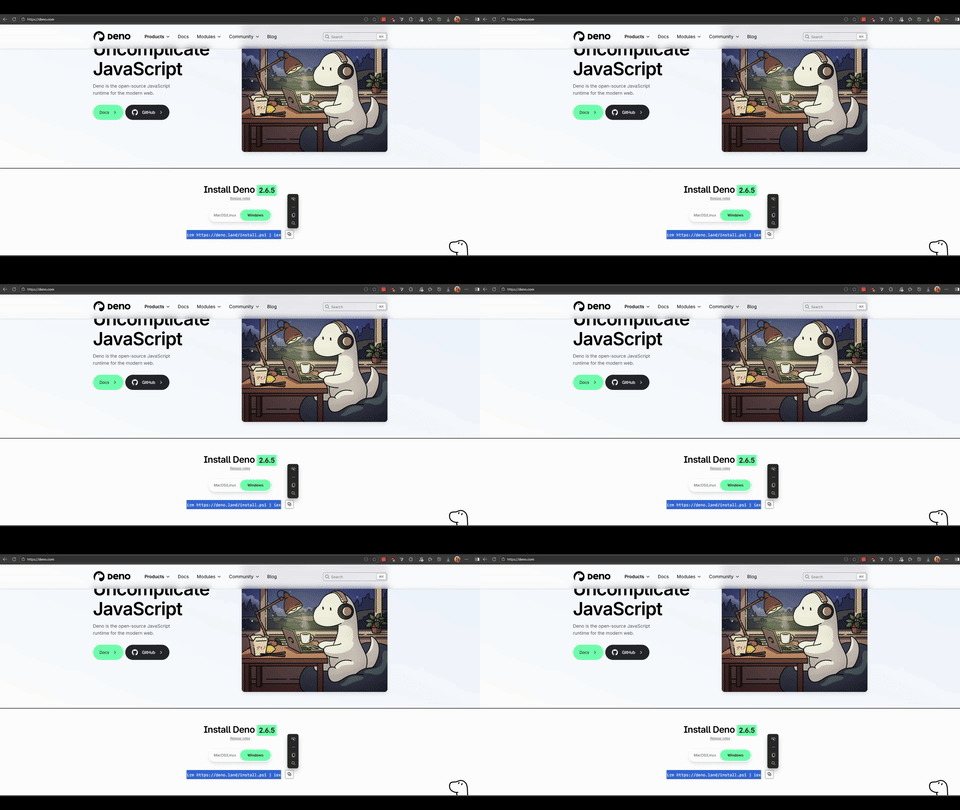
Shows the process of copying the D-Now link and pasting it into PowerShell.
Step 2: Access Environment Variables
Search for 'environment variables' on your computer and open the settings.
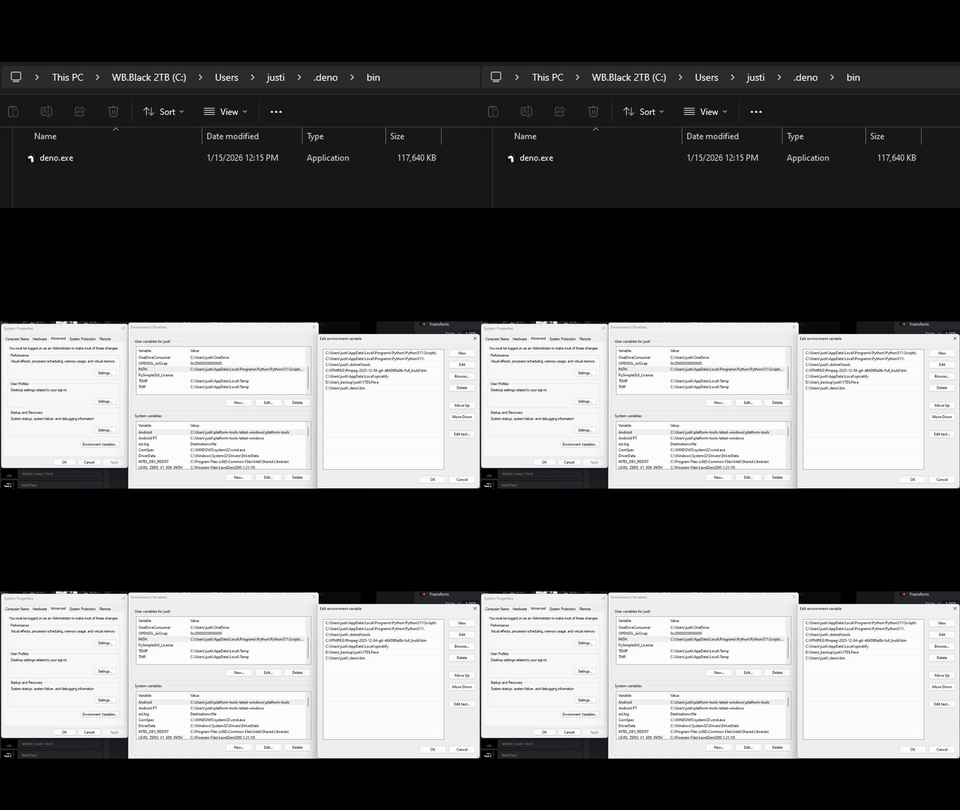
Displays the search and access of environment variables settings.
Step 3: Edit Path Variable
Find the 'Path' variable, click 'Edit', then 'New', and paste the D-Now bin path.
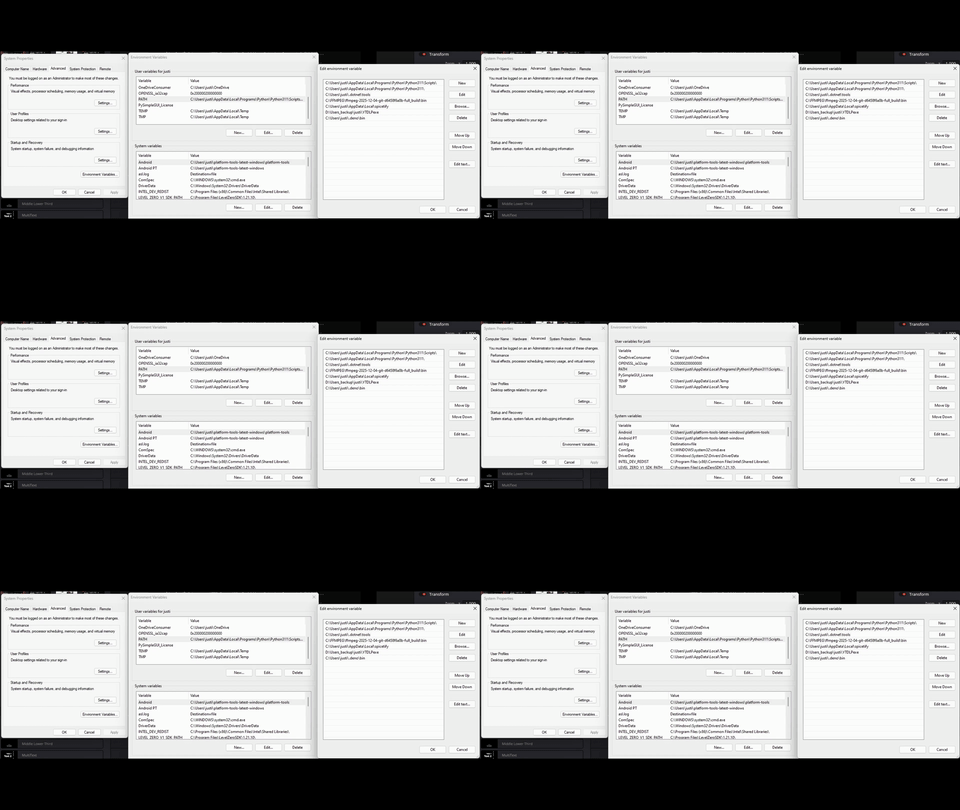
Illustrates editing the Path variable and adding the D-Now bin path.
Step 4: Update Config Folder
Locate your config folder and add 'impersonate Chrome, check formats, RM, cash, direct' into the cookies.
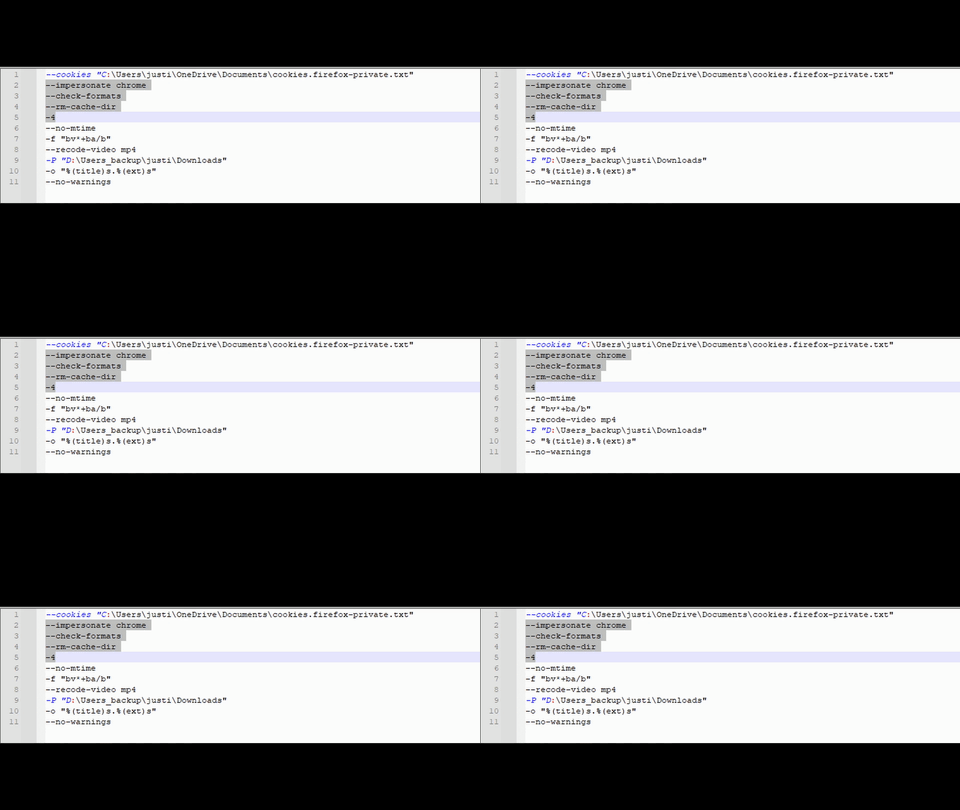
Shows the process of updating the config folder with necessary settings.